
Title Page Designer
Your title page is the cover sheet on an exported submission — the page an agent or editor sees before your manuscript text starts. Scriblit builds it from your document’s front matter (title, byline, and pitch) plus your contact details, and the Title Page designer is where you decide how those pieces are arranged.
Opening the Title Page designer
On the Submission tab, the Content group has a Title Page button. Clicking it opens the Submission Design dialog scrolled and focused straight to the Front matter section — the part that controls the title page. You can also reach the same section through Design (also on the Submission tab, or under File → Send), which opens the dialog at the top; scroll down to Front matter if you land there instead.
Whether the title page actually appears in a given export is controlled by the Title page inclusion in the Export dialog: it is included automatically once you have entered a title or byline, and you can turn it off for a single send from the dialog’s Change what’s included panel. See Saving & Exporting for the export flow.
Title page projection
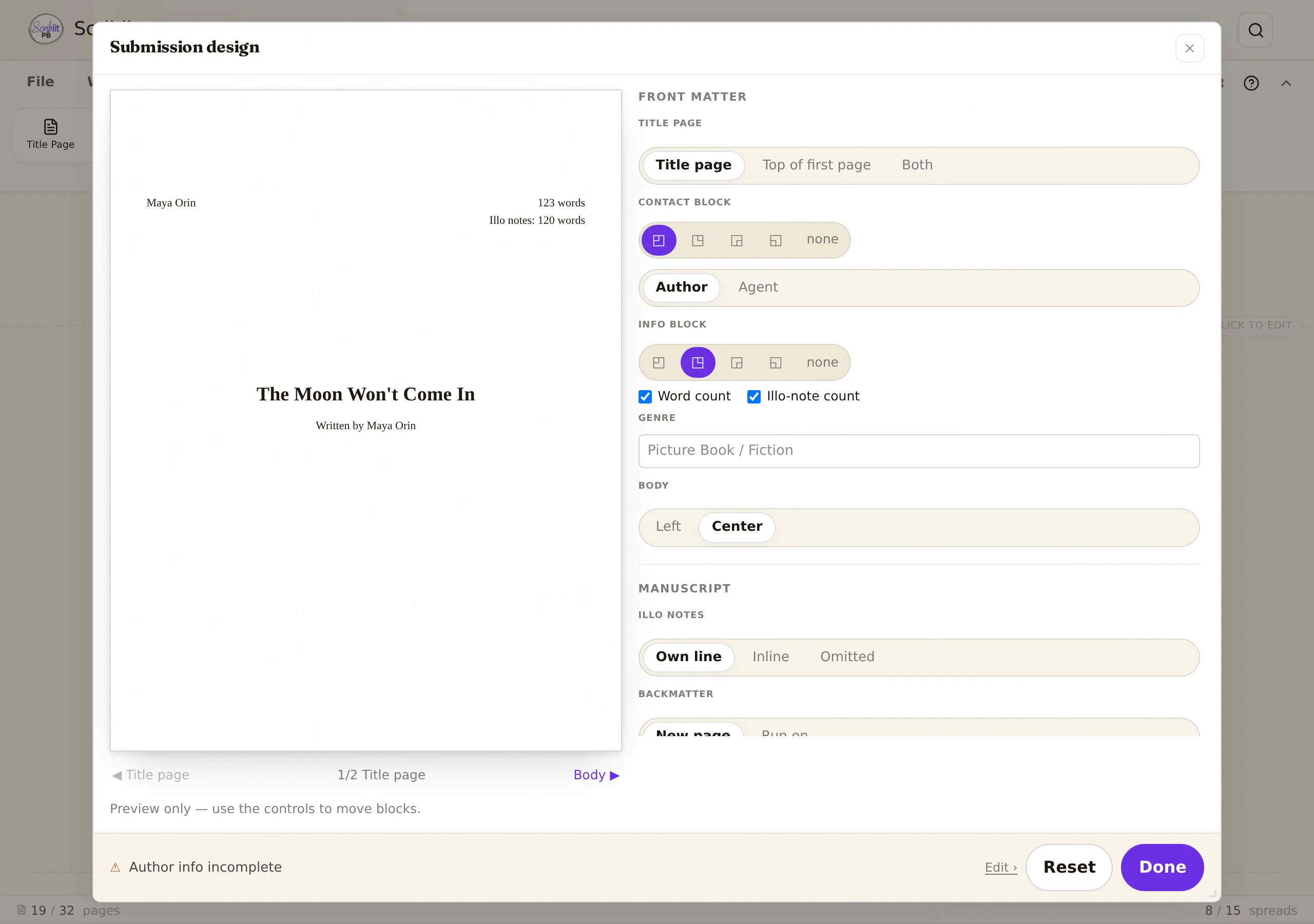
The Title page control — a three-way choice of Title page, Top of first page, or Both — decides where your front matter (title, byline, and pitch) renders:
- Title page places title, byline, and pitch on their own page ahead of the manuscript.
- Top of first page skips the separate page and prints that same block at the top of your first manuscript page instead.
- Both does both — a dedicated title page and a repeated block at the top of page one.
If your document has no title and no byline yet, the dialog shows a small [omitted = automatic] note under this control — front matter is left out of the export automatically until you give it something to show, regardless of which of the three choices is selected.
Contact block, contact source, and the info block
Two more blocks share the title page with your front matter, and each has its own placement control:
- Contact block — a four-corner picker (top left, top right, bottom right, bottom left) plus a None option lets you choose where your contact details sit on the page, or hide them entirely. Right next to it, Contact shows switches between Author and Agent, which decides whose details print. Both pull live from the fields you fill in on the Author Info dialog (opened from the same Submission tab) — the designer only controls placement, not the content.
- Info block — its own four-corner-plus-None picker positions a small block of manuscript metadata: a Word count checkbox, an Illo-note count checkbox, and a free-text Genre field (for example “Picture Book / Fiction”). If you point the info block at the same corner the contact block already occupies, the contact block keeps that spot — give the info block a different corner to show both at once.
Body alignment and the live preview
Under Body, a two-way Left / Center control sets how the title, byline, and pitch block is aligned on the title page.
Above the controls, a live preview pane shows exactly what you are building. A small pager toggles between ◀ Title page and Body ▶, with a status readout (1/2 Title page / 2/2 Body) so you always know which page you are looking at. The title-page view reflects every control on this page in real time — corner placement, contact source, checkboxes, genre text, and alignment all update as you change them. The body view is a preview only; it shows how illustration-note rendering and backmatter placement will look, but those controls live further down the same dialog. See Front Matter, Author Info & Backmatter for those.
Where the content comes from
The title page never asks you to retype anything — it assembles itself from content you have already entered elsewhere:
- Title, byline, and pitch come from your manuscript’s front-matter fields.
- Contact details (author or agent) come from the Author Info dialog, also on the Submission tab.
- Word count and illo-note count are computed from your manuscript automatically.
For the rest of the Submission Design dialog — illustration-note rendering and backmatter placement — and for how Author Info’s Author / Editor-Agent fields work, see Front Matter, Author Info & Backmatter.