Getting Started
Scriblit is a manuscript editor built specifically for picture book writers. Instead of fighting a general-purpose word processor, you draft directly in spreads which are the facing pages a reader actually sees along with illustration notes, word counts, and submission-ready exports built in.
Sign in and start writing
- Open the editor at app.scriblitpb.com and sign in (or create a free account).
- A new, untitled manuscript opens automatically, you can just start typing.
- The first time you sign in, a short interactive tour points out the main controls. You can skip it, and replay it any time from the Help menu (Tutorial).
Your manuscript stays with you. You save your project file wherever you keep your work — on your own device or in your own Google Drive — and export finished drafts the same way. Scriblit never stores your words on our servers; signing in unlocks the editor and syncs preferences, nothing more.
The editor at a glance
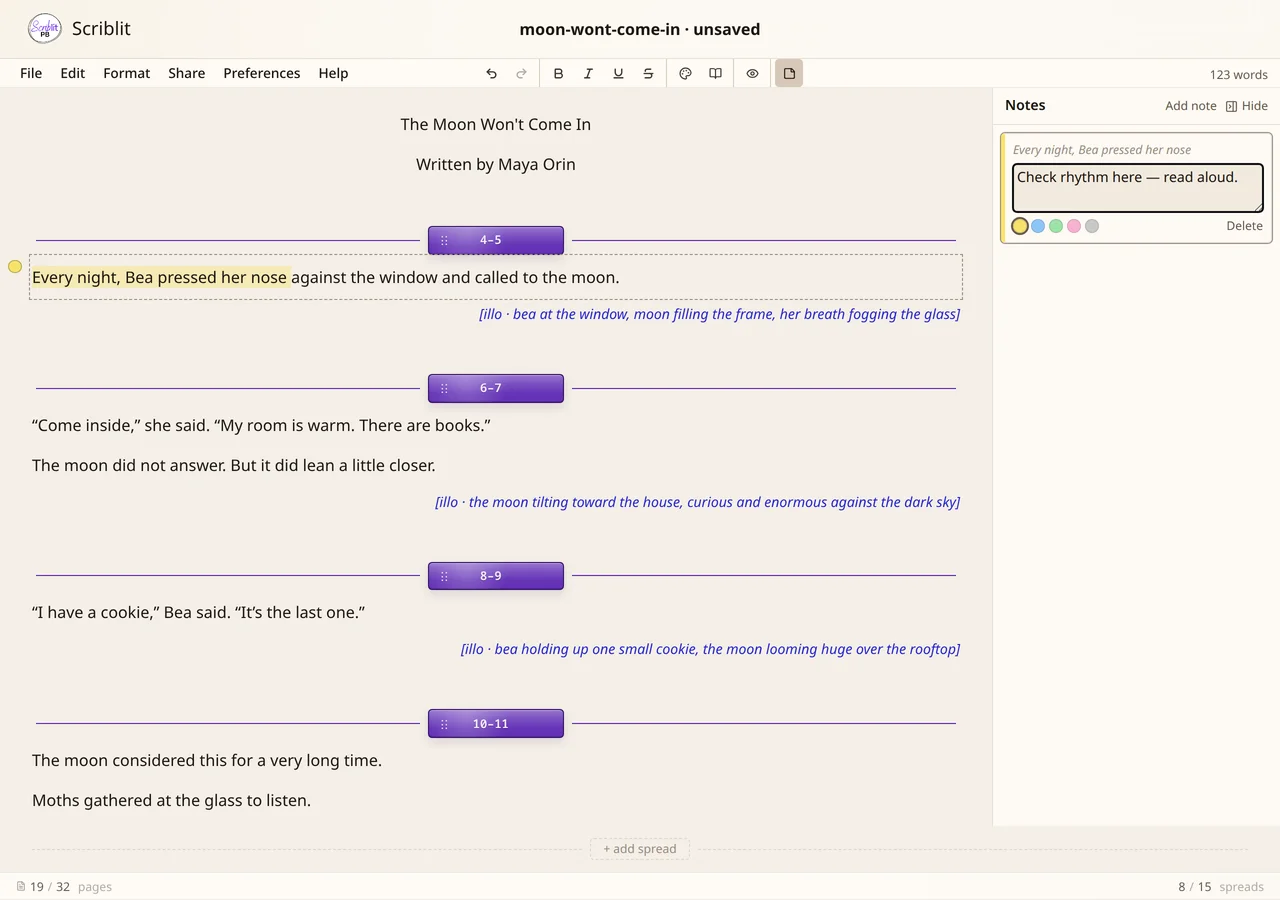
- Ribbon with tabs for File, Write, Submission, and View. Each tab groups related tools (save and open on File; formatting and spreads on Write; delivery and submission design on Submission; Focus Mode and Typewriter on View). Word count, Preferences (gear), and Help sit on the right of the tab row.
- Manuscript page which is your draft, divided into spreads with page-range labels like
[4–5]. - Status bar which shows live counts of pages and spreads used, how many you have left, and your word count.
Prefer a denser layout? Preferences → Editor → Control style lets you switch to Compact (three header anchors plus an icon bar). See Mobile & Desktop for how each style behaves on a computer versus a phone.
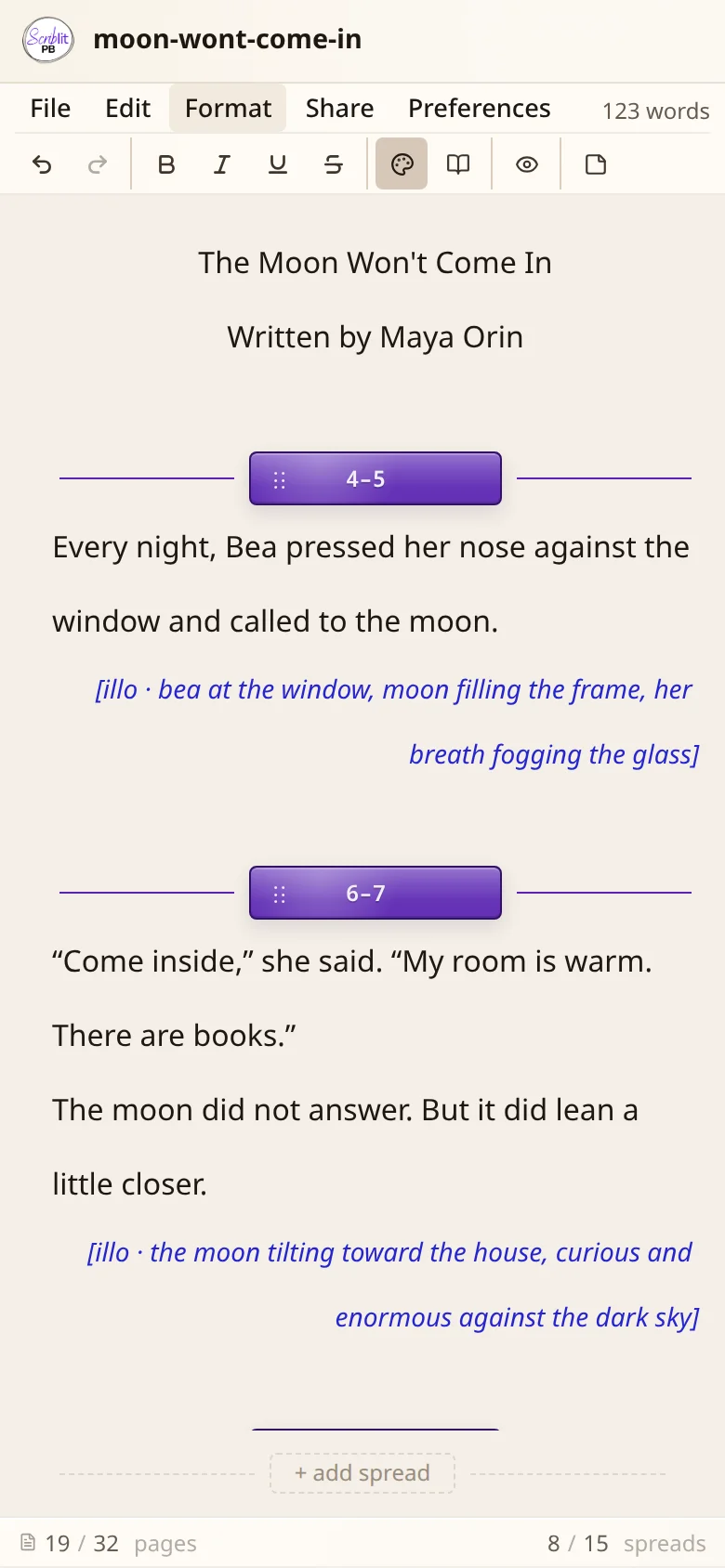
The editor adapts to small screens, too, open Scriblit on a phone or tablet and the ribbon and spreads reflow to fit.
Where to next
- Writing in Scriblit covers spreads, illustration notes, Focus Mode, and preferences.
- Saving & Exporting covers .spb manuscript files, Google Drive, and TXT/PDF/DOCX exports.
- Query Letter covers writing and exporting the submission letter that accompanies your manuscript.
- Installing the App covers adding Scriblit to your computer or phone so it opens in its own window and works offline.
- Picture Book Basics covers industry conventions and terminology: spreads, the 32-page book, front matter, and back matter.