Preferences
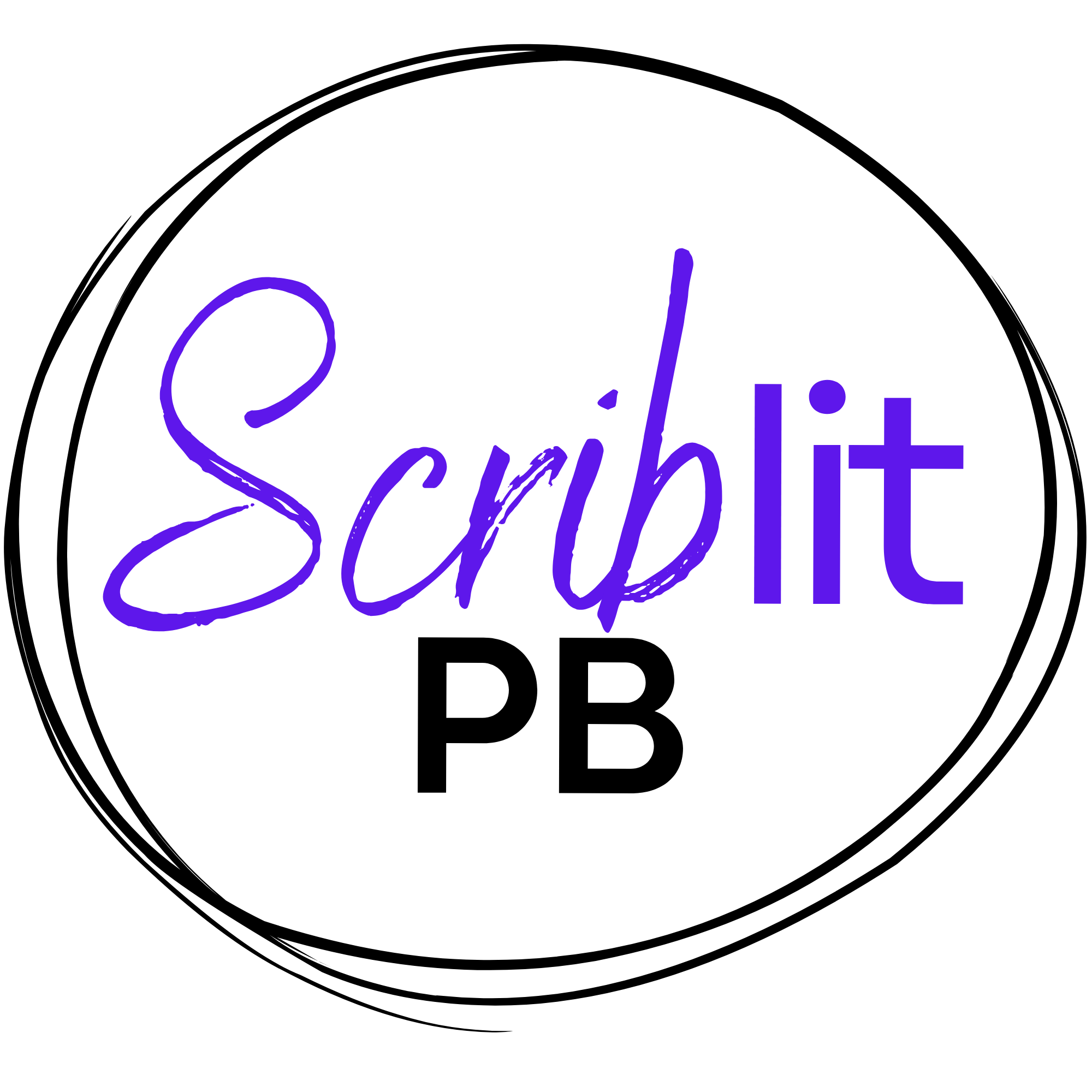
Preferences is where you shape both the document and the workspace around it. Settings are grouped into Document, Editor, Export, and Offline & Storage tabs. Author and Editor/Agent contact details live in their own Author Info dialog, not in Preferences. Preferences travel with your account, so a manuscript opens the same way on any device you sign in on.
Opening Preferences
In the Ribbon layout (the default), open Preferences from the gear on the right of the tab row. In Compact, open it from your account menu — on a wide window or a narrow one. The dialog uses a tabbed sidebar: Document, Editor, Export, and Offline & Storage. Every change applies at once, so there is no separate Save step inside the dialog. Close it when you are done.
Document
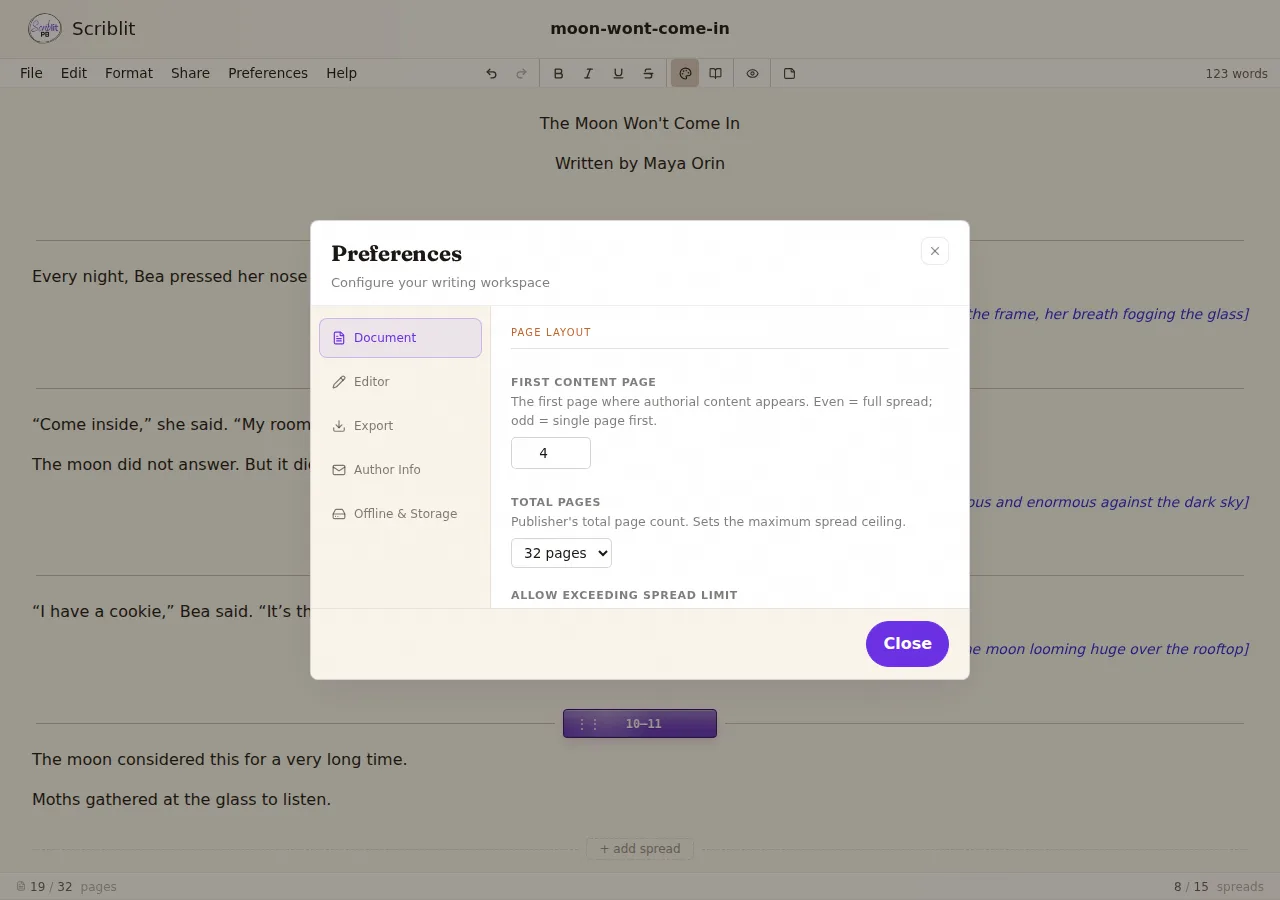
The Document tab sets your manuscript’s display font and the page layout your spread labels are calculated from.
- Display font: the font the manuscript uses on screen, with a live sample. The control shows whether the font is set for this document, inherited from your account default, or left at the editor default, with buttons to switch between them.
- First manuscript page: the page where your story begins, commonly page 4 in a 32-page book. An even first page opens on a full spread; an odd first page opens on a single right-hand page.
- Total pages: your page total, chosen from the standard industry counts of 24, 28, 32, 40, 48, and 64 pages. This sets the limit on how many spreads a manuscript can hold.
- Allow exceeding spread limit: lets you keep adding spreads past the page limit while you draft. Scriblit still warns you on export so an over-length manuscript never leaves quietly.
- Spread scaffold on new documents: when on, new blank manuscripts start with spread dividers already placed for your page layout. Turn it off if you would rather build spreads up yourself.
For the conventions behind these numbers, see Picture Book Basics.
Editor
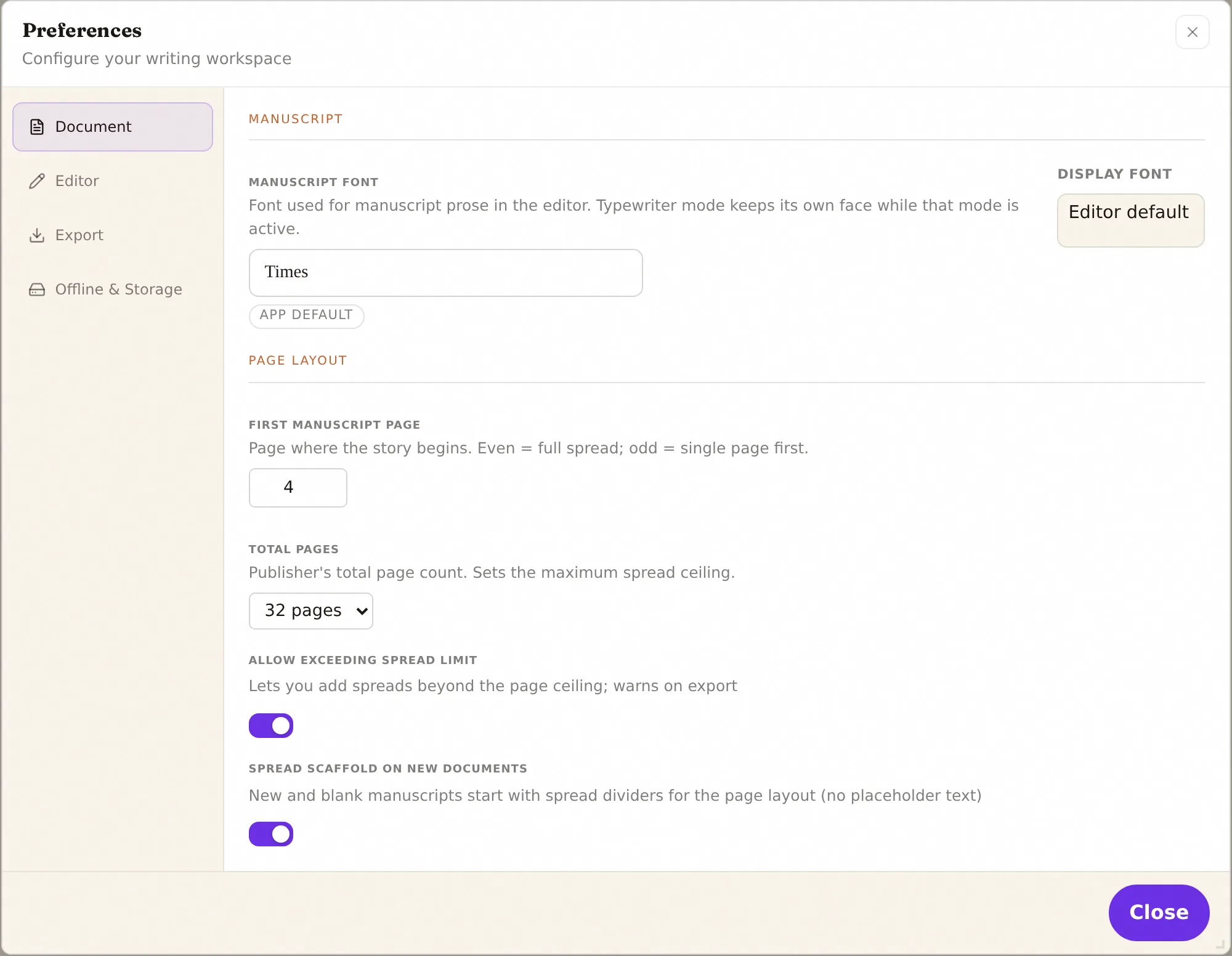
The Editor tab tunes the writing surface itself. None of these choices change your exported file; they change how the manuscript looks and behaves while you work.
- Control style: choose Ribbon (default) or Compact. Ribbon replaces the icon bar with tabbed groups; Compact uses three header anchors plus an icon bar. See The Ribbon & Compact.
- Show button labels: shown when Control style is Compact; adds text labels under the icon bar’s buttons.
- Editor mode: choose Rich text for bold, italic, underline, and strikethrough, or Plain text for a distraction-free surface with no inline formatting.
- Typewriter Mode: turn on a focused writing mode that keeps your eye line fixed while text scrolls beneath it. Typewriter font, typing sounds, and the writing-line position are separate controls on the ribbon’s View tab once Typewriter Mode is on.
- Icon bar: choose None, Small, or Large for the row of one-click formatting tools. Applies to Compact layout; Ribbon replaces the icon bar entirely.
- Display font color: the on-screen editor text color — Black, Blue, Sepia, or Custom. Exports keep their standard font color regardless. Choosing Custom reveals a color picker.
- Illustration note color: the on-screen tone of illustration notes — Blue, Grey, Black, or Sienna — with a live swatch preview.
- Front matter presentation: how the title, byline, and pitch appear above the manuscript on desktop — a Header zone or a Companion card.
- Divider justification: the on-screen position of the spread badge in the editor — Left, Center, or Right. Exports keep their own label position, set separately on the Submission tab.
- Manuscript text size: Small, Standard, or Large on-screen display size for the manuscript text. Exports are unaffected.
- Warning threshold (under Word count): the number you set here turns your live word-count chip red once your manuscript passes it — useful for staying under the typical 500 to 600 words of a modern picture book. Turn the warning itself on or off with Word Count Warning on the ribbon’s View tab; Preferences sets the number.
- Device defaults: a save/inherit control for a group of appearance and layout settings that stay local to this device by default — icon bar, control style, front matter presentation, editor mode, manuscript text size, display font color, and the paper shade and spread divider color you pick from the ribbon’s View tab. Use it to promote this device’s choices to your account default, or to reset this device back to following that default.
Export
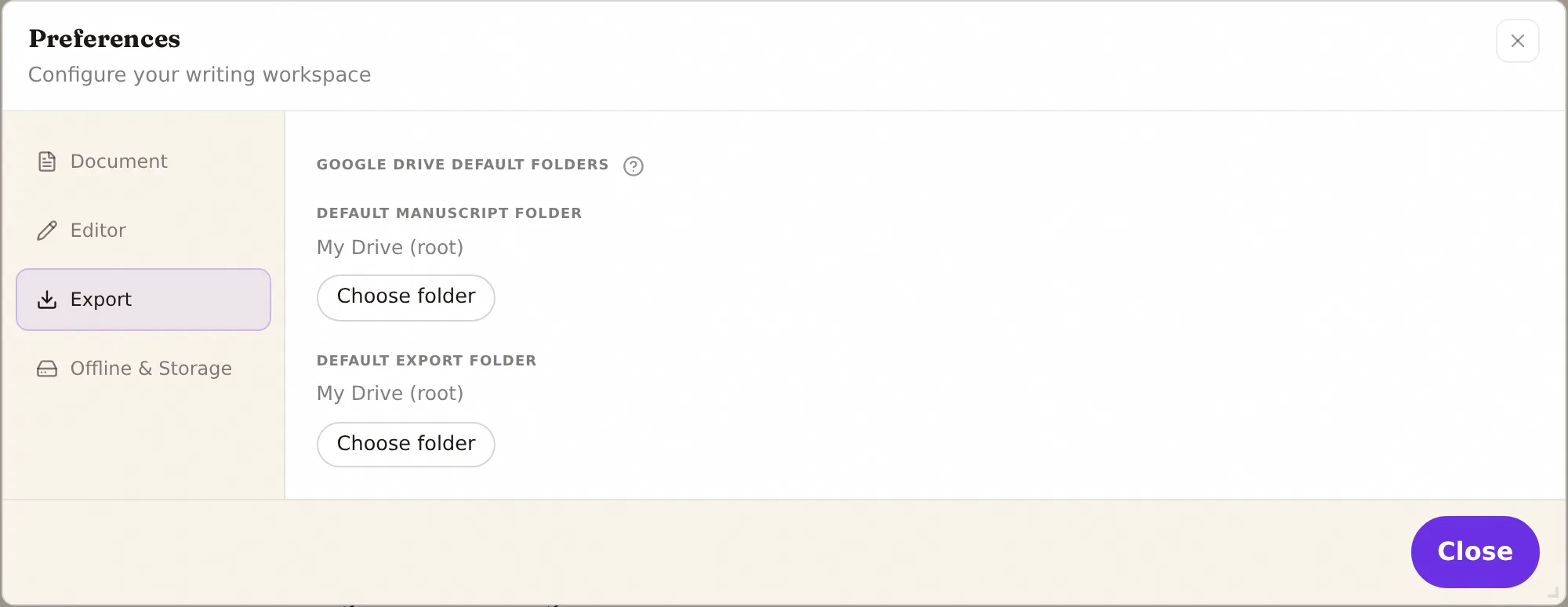
The Export tab keeps a Google Drive default that applies across documents: the folders new project files and new exports go to.
Everything that changes the presentation of a specific send — spread label position and page count, pitch, first-page contact block, author notes, query letter mode, and the submission designer — lives on the ribbon Submission tab and in the Export dialog instead. See Saving & Exporting.
- Google Drive default folders: set separate default folders for Scriblit project files and for formatted exports. Each shows the current folder (My Drive (root) when none is set) with Choose folder and Clear actions. These defaults apply only when a document-specific or previously-used folder is not already in play. See Saving & Exporting for how Scriblit resolves the destination.
Offline & Storage
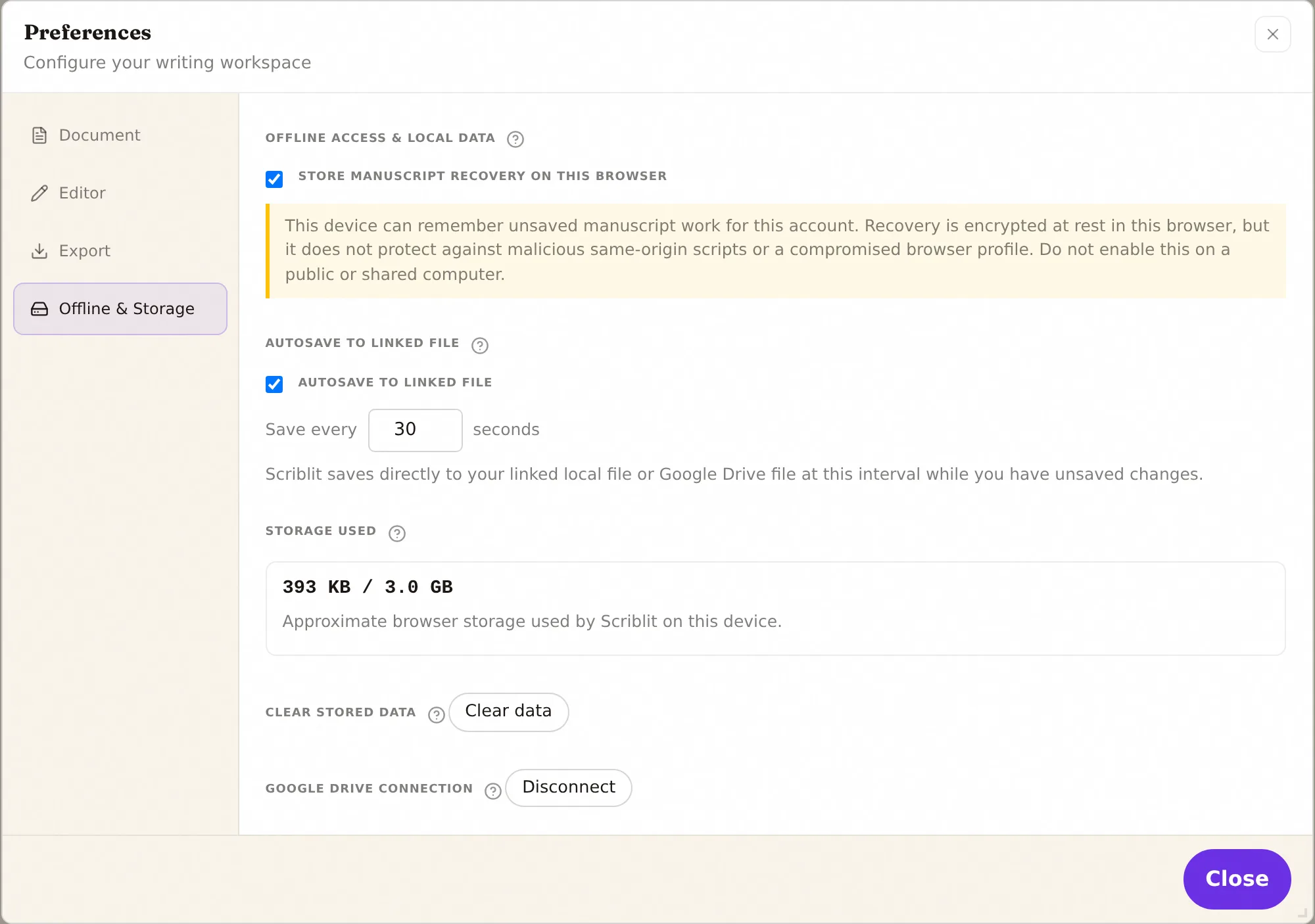
The Offline & Storage tab governs what Scriblit keeps on the device in front of you, your connection to Google Drive, and autosave to a linked file.
- Store manuscript recovery on this browser: when on, this device can remember unsaved work for your account so a crash or accidental close does not lose it. Leave it off on a public or shared computer.
- Autosave to linked file: when your manuscript is linked to a specific file on this computer or in Google Drive, Scriblit can save your changes to that same file automatically while you work, in addition to Save (Ctrl/⌘+S). Set the interval in seconds; while it is off, Scriblit only saves when you choose Save.
- Storage used: an approximate meter of the browser storage Scriblit is using on this device, including recovery drafts, offline data, and caches.
- Clear stored data: removes the saved manuscript and your subscription token from this browser. You will need to reconnect to the network to re-verify your subscription and reopen the editor.
- Google Drive connection: Disconnect revokes Scriblit’s access to your Google account. You can reconnect any time you next import from or export to Drive.
Your manuscript text is never stored on Scriblit’s servers. See Saving & Exporting for how offline editing and recovery work in practice.
How settings differ across devices
Most preferences follow your account, so the writing surface and export choices you set on a computer are waiting for you on your phone. Some settings are deliberately local to the device: the recovery toggle, the autosave-to-linked-file settings, and the Clear stored data action only ever affect the browser you are using, because they concern data or files physically tied to that machine. A cluster of appearance and layout choices on the Editor tab also default to per-device — use that tab’s Device defaults control if you want them to follow your account instead. For a fuller picture of the interface differences, see The Ribbon & Compact.