Compact on a Small Screen
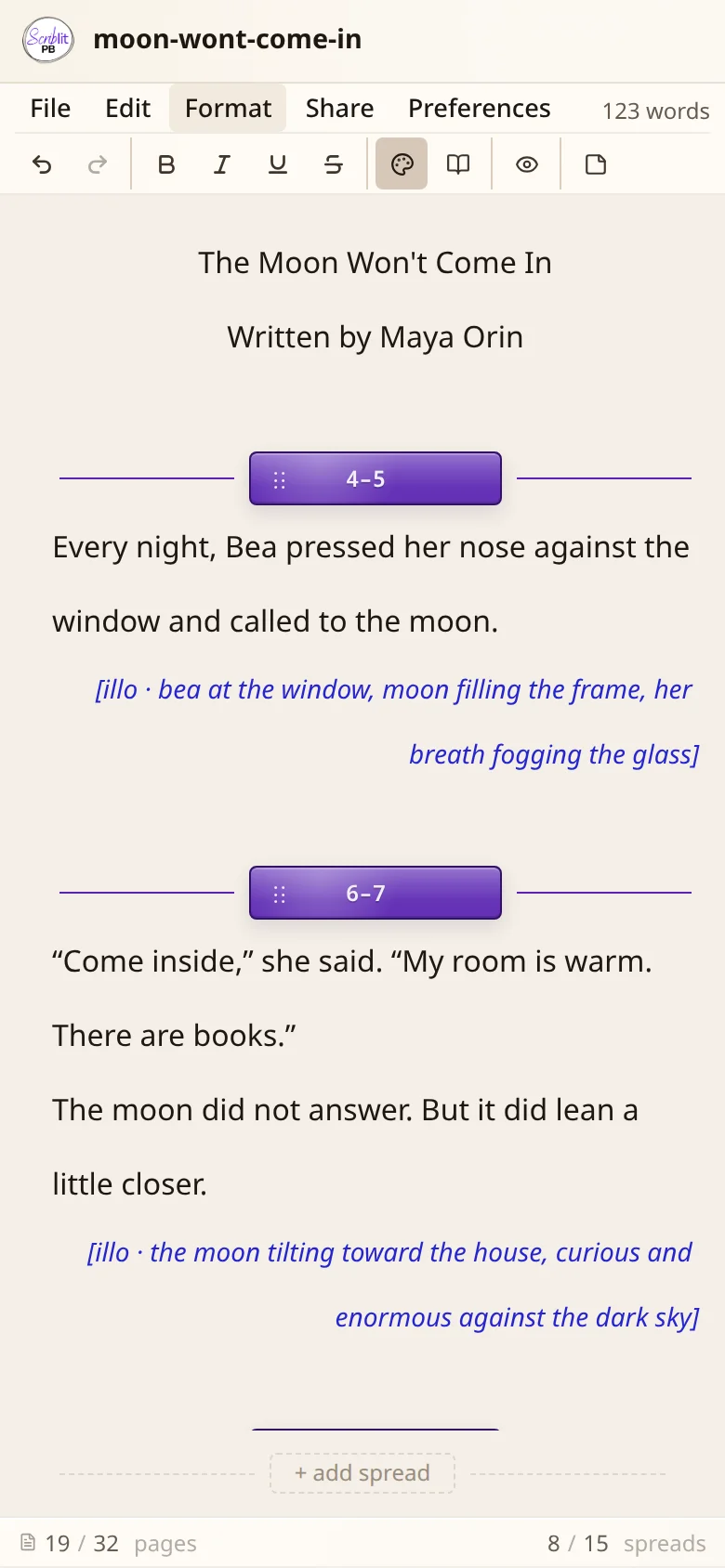
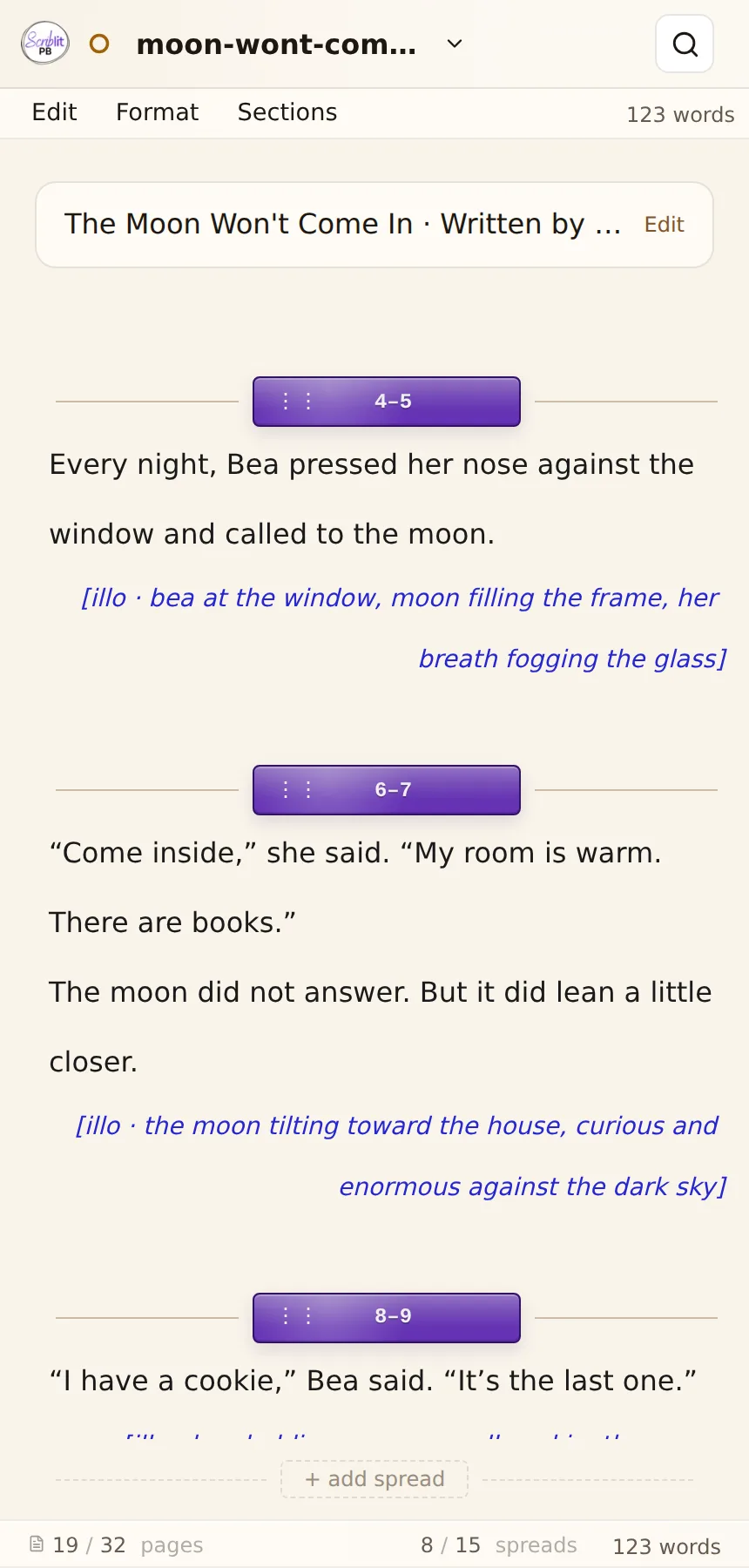
Below roughly 700 pixels wide, Compact swaps its three anchors for a small-screen layout built around action sheets. This follows window width, not the device — a slim desktop window in Compact shows the same layout a phone does.
The action sheets
Once a Compact window is narrow (a phone, or a slim desktop window), the three-anchor header collapses to a small-screen layout: the document title stays a menu for the file lifecycle, the formatting icon bar sits beneath it, and a row of triggers opens action sheets that slide up from the bottom. Each sheet lists its actions as large tap rows with no hover flyouts and no keyboard-shortcut hints. Opening one sheet closes any other, and tapping an open trigger again closes its sheet.
- Edit and Format appear in the trigger row only when the icon bar is hidden. When the icon bar is showing, it already owns those actions, so the triggers step aside to save room.
- Preferences, Documentation, and Help live in the account menu, the same tabbed dialog and links as on the desktop.
- Exporting and sharing run from the file (title) menu’s Export — the Send dialog gathers the format, what to include, and where the file goes, including your device’s share sheet. See Saving & Exporting.
With or without the icon bar
The icon bar is the one thing that changes which triggers you see, and it is set in Preferences → Editor → Icon bar.
If you would rather keep the tabs
With Ribbon selected, a narrow screen keeps the ribbon instead of these sheets. The toolbar and the spreads still reflow to fit a small screen, so a manuscript that fills a laptop still reads comfortably on a phone. See The Ribbon.
Sharing an export from a phone or tablet hands the file to your device’s native share sheet rather than downloading it to a folder. The full picture is in The Ribbon & Compact and Saving & Exporting.