Author Notes
Scriblit keeps a place for the notes that are just for you — reminders, questions, alternate lines, anything you want pinned to a specific passage without touching the manuscript itself. This page covers how notes anchor to your text and how to work with the Notes overlay that holds them.
What author notes are
Author notes are private margin notes for yourself — reminders, questions, alternate lines — anchored to a passage or paragraph. They live in the Notes overlay, never appear in your manuscript text, and are saved with your .spb file.
Adding a note
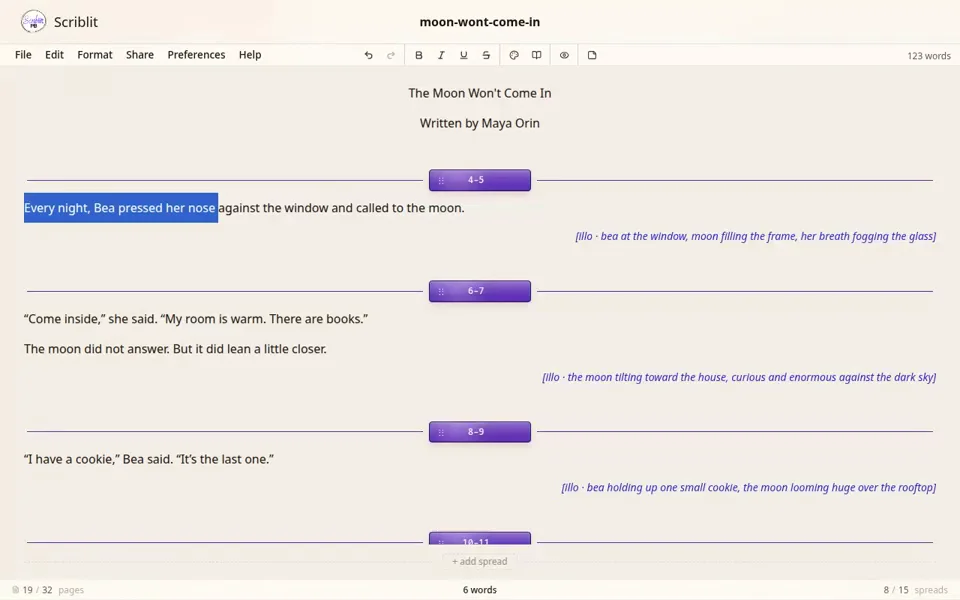
- Select the text you want the note attached to (or just place the cursor in a paragraph).
- Choose Add Note from the selection menu that appears near your cursor.
A colored margin marker appears in the gutter next to the anchored block. Click the marker (or the note itself in the Notes overlay) to jump back to that spot. If the gutter is hidden when you add a note, Scriblit turns it back on automatically so the new marker is visible.
If you rewrite the passage a note was anchored to, the note isn’t lost; it’s listed as detached in the Notes overlay. To re-attach it, select the new passage in your manuscript, then click Attach here on that note’s card in the overlay — the note re-anchors to your current selection. (If the overlay is covering your text, pin it first so the manuscript stays clickable while you select.)
The Notes overlay
Opening Notes shows the All Notes overlay: a floating window listing every note in your manuscript, in document order, with a filter field and an Add Note button of its own. Unlike the docked panels of older versions, this overlay floats above your manuscript and can be positioned independently of the rest of the workspace.
- Move it — drag the overlay by its header (the title bar reading “All notes”) to reposition it anywhere in the window.
- Resize it — drag the handle in the overlay’s bottom-right corner to make it larger or smaller.
- Pin it — click the pin icon in the header. A pinned overlay stops behaving like a dialog: the area behind it becomes click-through, so you can keep working in your manuscript (placing your cursor before adding another note, for example) while the overlay stays open. An unpinned overlay behaves like a normal dialog — clicking outside it, or pressing Esc, closes it.
- Pop it out — click the pop-out icon in the header to move the overlay into a separate browser window titled “Scriblit — Notes,” which you can drag to a second monitor and keep open alongside your main Scriblit window. Closing either window closes the other to match.
Move, resize, and pop-out are desktop-only. On narrow phone or tablet screens the overlay docks to the bottom of the screen as a fixed sheet instead.
Notes in the margin
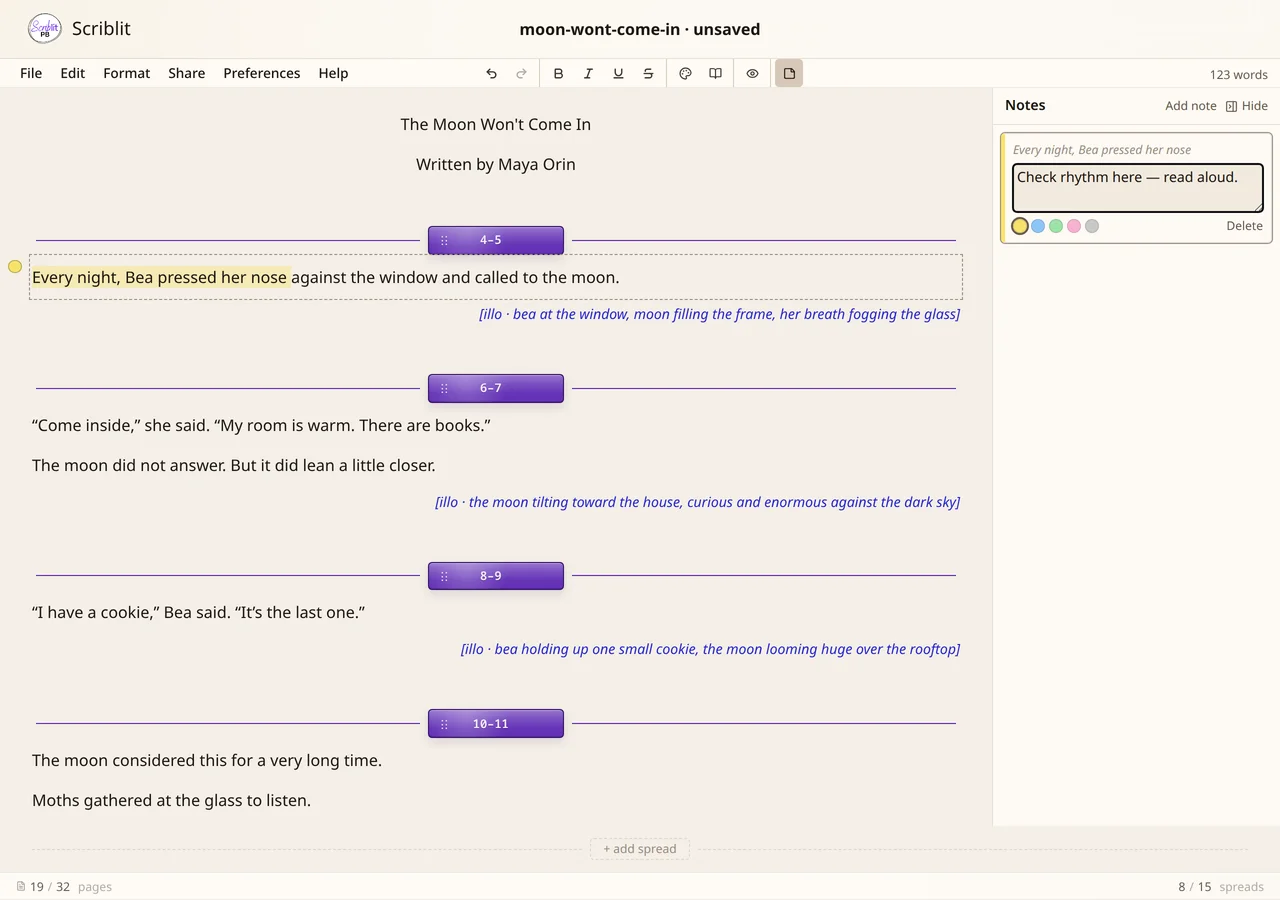
On a desktop-width screen, you don’t have to open the overlay to see or edit your notes. With the overlay closed, Scriblit shows each note as a card in a margin lane beside the manuscript: the anchored passage is highlighted in the note’s color, a matching marker sits in the gutter, and the card shows the note’s text with an Edit action. This keeps you in the editor — read, tweak, and re-color a note in place while the manuscript stays right where it is. Opening the All notes overlay hands off to that floating window instead; closing it returns the cards to the margin.
Opening and toggling Notes
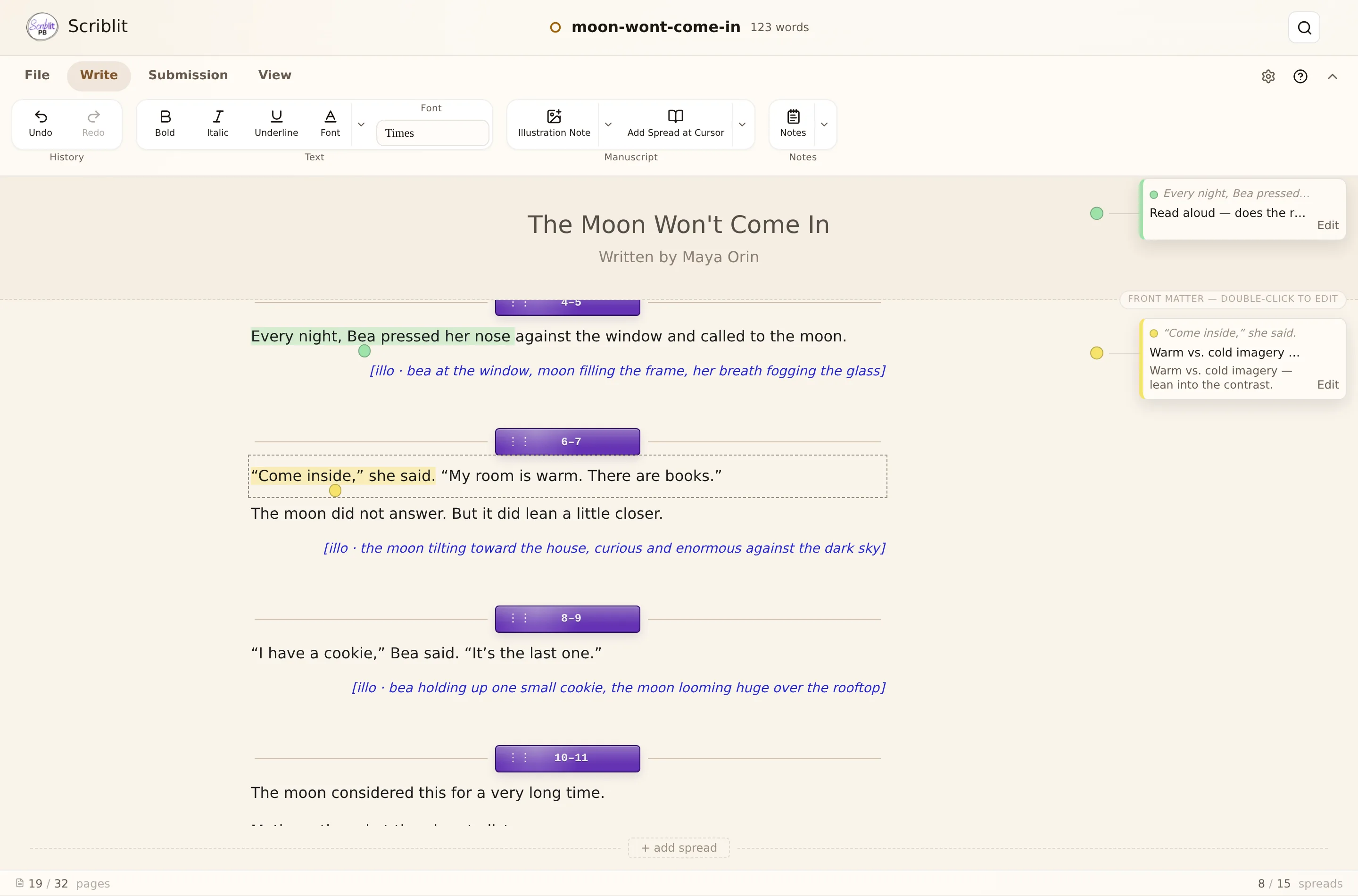
The Notes control on the Write ribbon tab is a split button:
- The face toggles the Notes overlay open or closed.
- The chevron opens a small menu with Show notes in gutter, which toggles the margin gutter itself (the lane where markers appear) independently of whether the overlay is open. Turn it off to hide markers entirely while still keeping your notes saved in the document.
Notes is also reachable from the Workspace menu in Compact, and from the selection menu’s Add Note action wherever you write.
Author notes and the Query Letter overlay
The Notes overlay and the Query Letter overlay are both floating windows built the same way — each independently movable, resizable, pinnable, and poppable into its own window. They are separate surfaces holding separate content: author notes are private annotations anchored to passages in your manuscript, while the query letter is the plain-text submission letter you write once and export or copy out separately.