Compact
Compact trades the Ribbon’s tabs for a lighter control bar: three anchors across the top and an icon bar for one-click formatting. It is the control style to pick when you would rather see more manuscript and fewer controls.
The three anchors
Switch Control style to Compact in Preferences if you prefer a lighter control bar than the Ribbon. On a wide window Compact replaces the ribbon with three anchors:
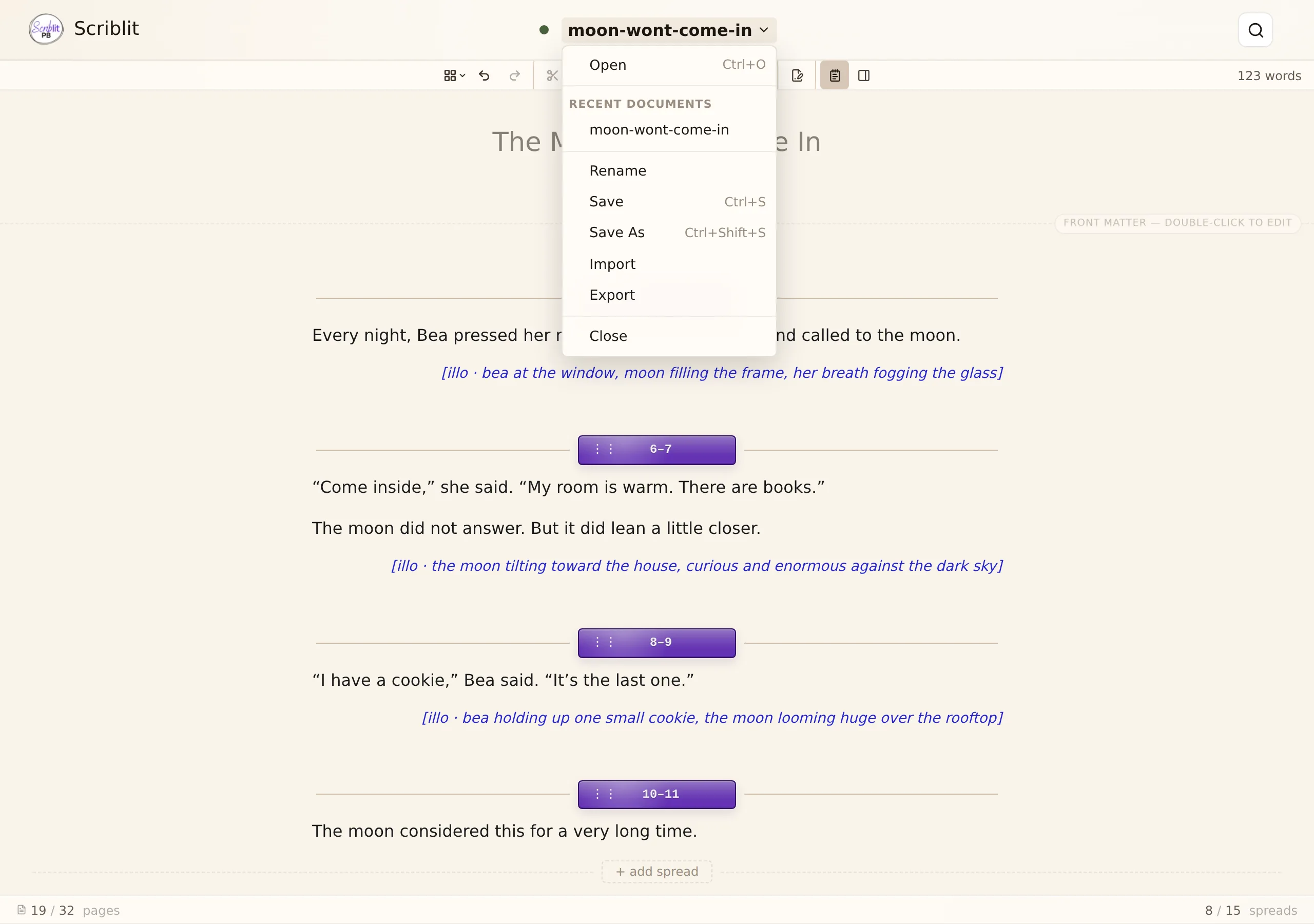
- The document title itself is a menu. Click it to open the Document menu — Open, a Recent Documents list, Rename, Save, Save As, Import, Export, and Close.
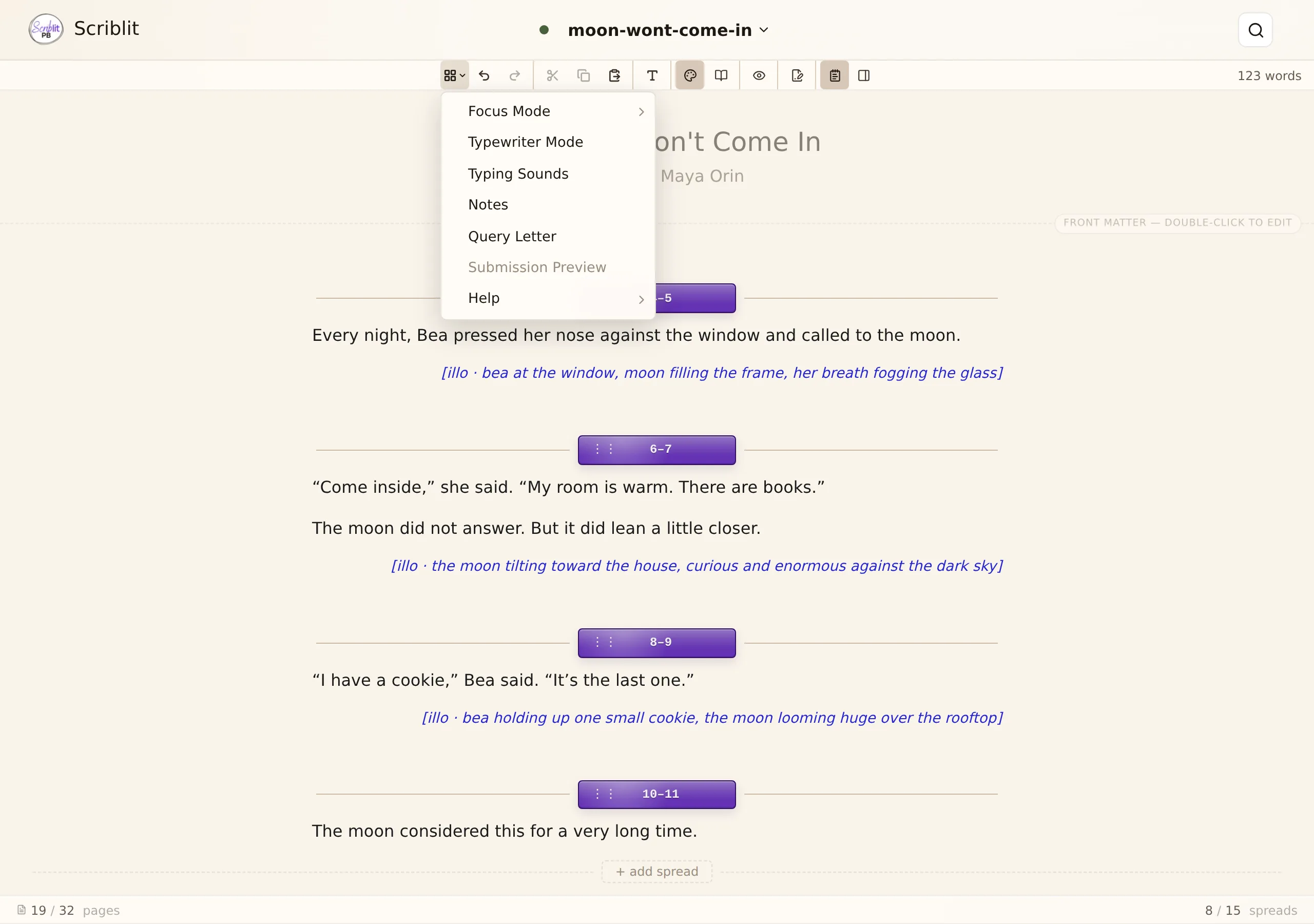
- A Workspace button on the icon bar opens Focus Mode, Typewriter Mode, Typing Sounds, Notes, Query Letter, and a Help submenu.
- Your account menu (the avatar) holds Preferences, Documentation, Tutorial, and Contact Support, the same as on the Ribbon.
The icon bar stays for one-click formatting.

The document-title menu
Everything in the file lifecycle lives behind the title: opening, renaming, saving, importing, exporting, and closing. See Saving & Exporting for what each of those does.
The Workspace menu
The writing modes and the floating panels that the Ribbon spreads across its View and Write tabs are gathered here instead. Notes and Query Letter open the same overlays described in Author Notes and Query Letter.
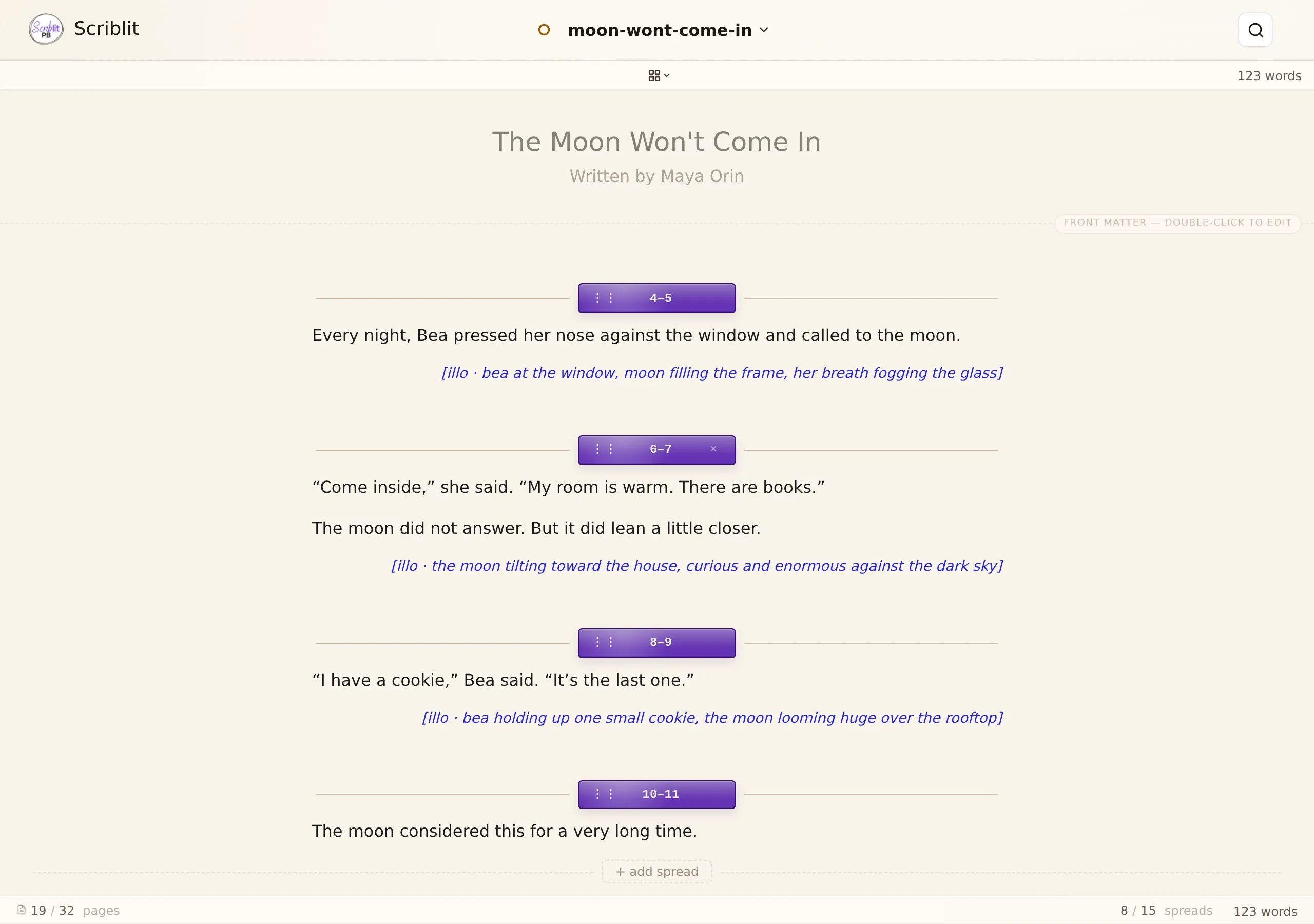
Turning the icon bar off
Preferences → Editor → Icon bar offers None, Small, or Large. Set to None, Compact keeps only the document-title menu and the word count at the top, with Query Letter and Notes buttons at the edges — the least chrome Scriblit offers.
On a narrow window
Once a Compact window is narrow — a phone, or a slim desktop window — the three anchors collapse to a small-screen layout with action sheets. See Compact on a Small Screen. The Ribbon does not do this; it keeps its tabs at every width, as The Ribbon describes.