Cover Letter
A cover letter is the plain-text introduction you send with your manuscript to an editor or agent. Scriblit lets you write, store, and export it alongside your project, with options to include it in your submission or keep it private.
What a cover letter is
A cover letter (or query letter) is the accompanying letter you submit to an editor or agent introducing your manuscript. It’s distinct from a title page: while Scriblit stores your title, byline, and pitch in the front matter of your document (visible in every export), the cover letter is a separate piece of prose you either send in the body of an email or as the first page of your submission package.
Writing your cover letter
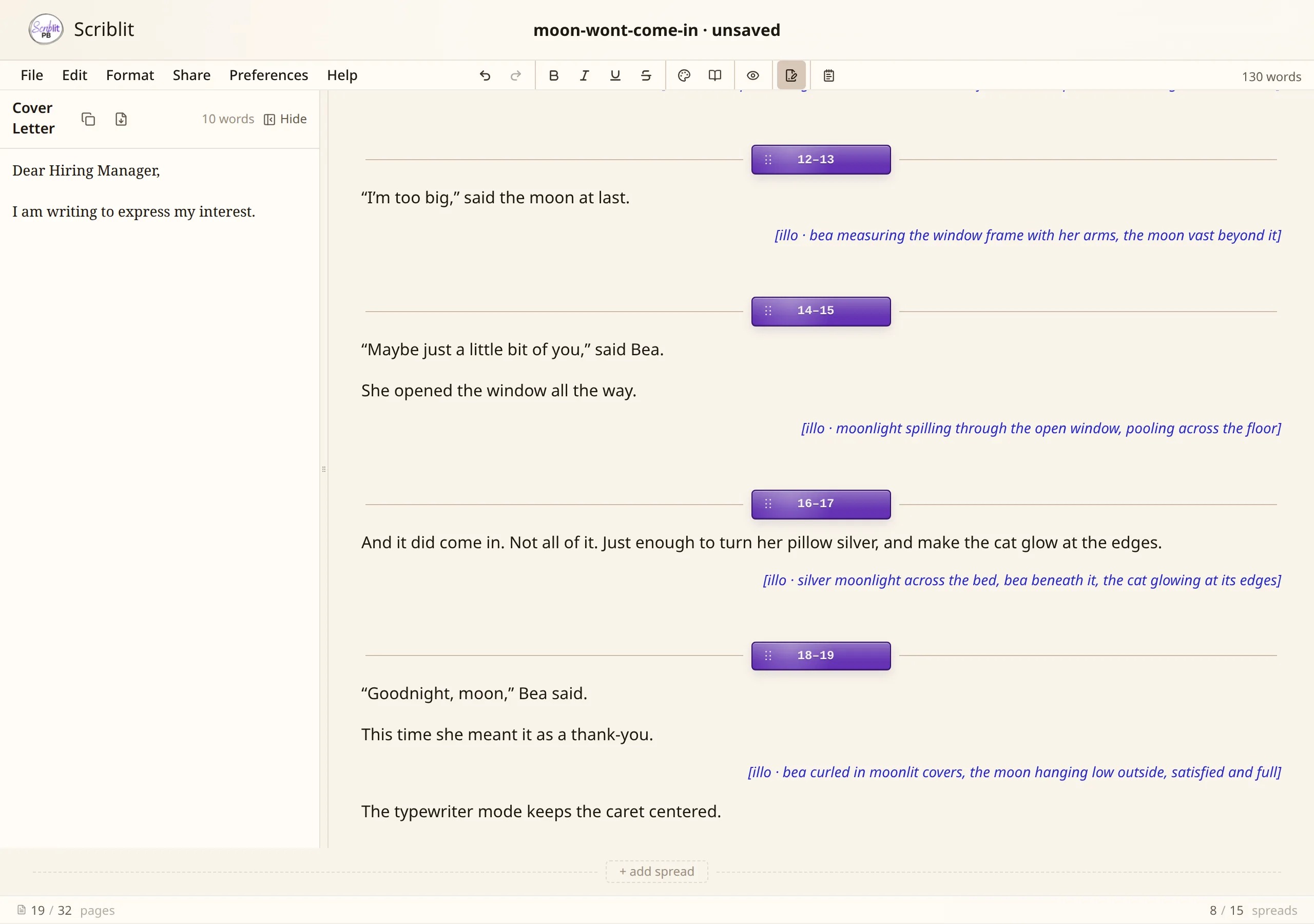
The Cover Letter panel opens from a side of the editor on desktop: by default from the left, but you can change this to the right in Preferences → Editor → Cover Letter side panel. On phones and tablets, it docks to the bottom half of the screen as a fixed sheet, sharing that slot with the Notes panel—opening one closes the other on narrow screens. Open it from the icon bar button (a document/signature icon) in the toolbar.
On desktop, when the Cover Letter and Notes panels are docked to the same side (left or right), they combine into a single tabbed panel called Combined View. The tabs let you switch between Cover Letter and Notes while keeping both panels at the same shared width. If you move one panel to a different side, Combined View splits them back into two separate, independently-hidden panels.
The panel width is drag-resizable with a handle at the inner edge (toward the editor), so you can make it wider or narrower as you work.
- The panel is a plain-text field only, with no rich formatting, no spreads, and no illustration notes. Type or paste your letter as you would write it, and every line break you add is preserved exactly as typed.
- Your cover letter is saved inside your
.spbproject file alongside your manuscript, so it opens wherever your project opens. - The letter is not automatically included in any export unless you choose otherwise in your export settings or in Preferences.
Export options
You control what happens to your cover letter at export time. Choose one of three modes, either in the Cover Letter panel itself or in Preferences → Export:
- Not exported (default): the letter stays private and never appears in any manuscript export. Use this if you send the cover letter separately from the manuscript, or if you’re sharing only the story itself.
- First page: when you export a manuscript, the cover letter becomes page one, followed by a page break before the story begins. This gives you a single file to send that includes your introduction and your full manuscript.
- Separate file: the cover letter is kept out of the manuscript export entirely. You can then export it on its own as a standalone file to send in the email body or include in your submission separately from the story.
Note that Focus Mode exports (the read-through copies like "story text only" or "story + art notes") never include the cover letter, since those are clean reading copies, not submission packages.
Exporting or sending it
From the Cover Letter panel, two quick actions help you share your letter:
- Copy cover letter: copies the plain text to your clipboard, handy for pasting directly into an email body or a web form.
- Export…: opens a dialog where you choose the file format and export scope. Choose your file type (
.pdf,.docx, or.txt), then select whether to export just the cover letter or the cover letter followed by the full manuscript on the same file. This lets you create a single submission package on demand.
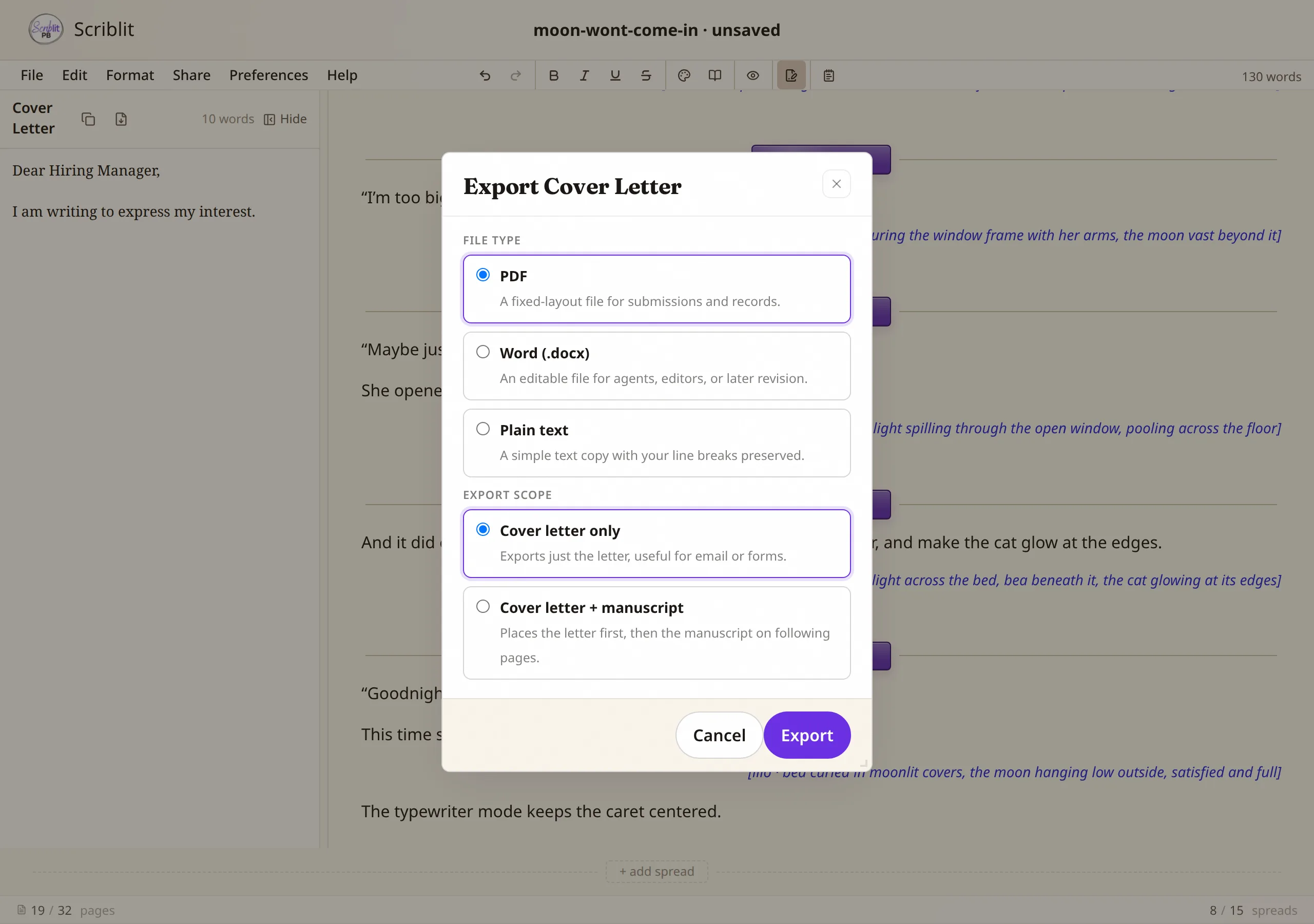
The same standalone export options are also available from Share → Cover Letter on desktop, which also offers direct format commands (PDF, Word, or Plain Text) when you want to skip the dialog.
Privacy
Like your manuscript and author notes, your cover letter lives only in your local .spb project file. Scriblit doesn’t send it anywhere unless you explicitly copy, export, or share it. When you choose a Google Drive destination, your file goes directly from your browser to your Google account, with no intermediate servers involved.